

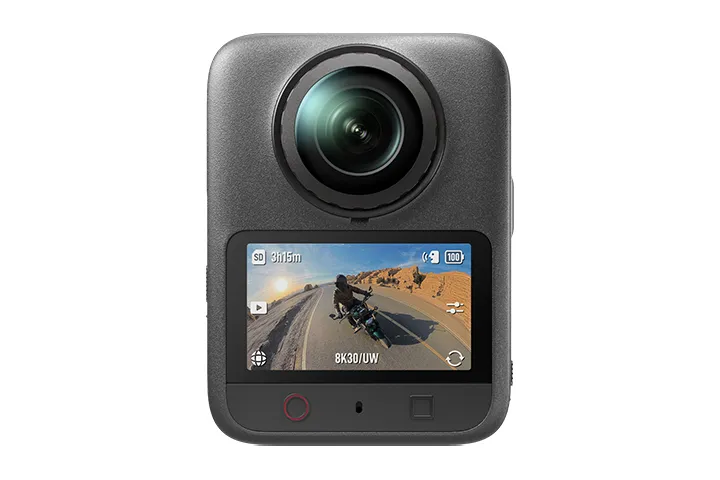
DJI Osmo 360 II Adventure Combo
Or 4 interest-free payments of $327.25 with 
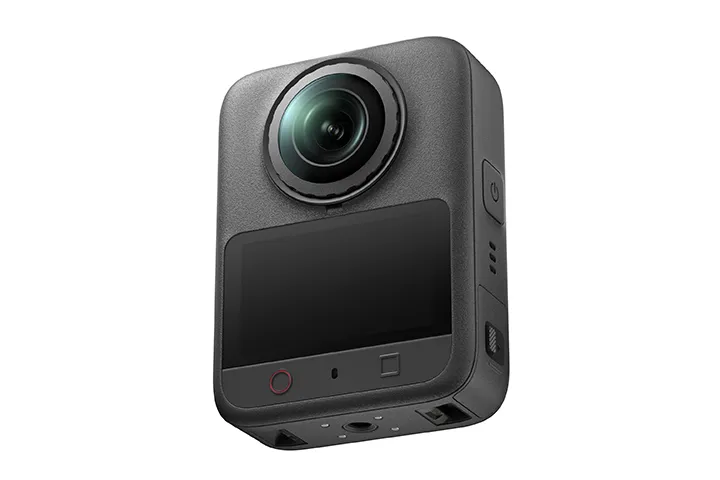
Capture epic adventures in native 8K/60fps with the DJI Osmo 360 II Adventure Combo. Features 1-inch 360° imaging, 14.5-stop dynamic range, AI SuperNight 2.0, 105GB built-in storage, and extra power for extended all-scenario shooting.
Osmo 360 II captures every side of the story. With 1″ 360° imaging [1] and a high-performance chip, it delivers native 8K/60fps video with stunning clarity. A 14.5-stop dynamic range [2] and AI SuperNight 2.0 capture striking details across highlights and shadows. Shoot worry-free with ultra-hard replaceable lenses [3] and 105GB of built-in storage. With Spotlight Follow [4], NFC Quick Connect, and smart editing features, creating your next masterpiece is effortless.
Flagship Imaging, Day or Night
Specially designed for 360° capture, the square HDR image sensor maintains the same 360° image field [1] as a traditional 1-inch sensor, while increasing sensor utilisation by 25%. This delivers lower power consumption and a massive leap in image quality, keeping footage clean and clear, day or night [6].
1-Inch 360° Imaging [1] & Native 8K/60fps
Advanced 1-inch 360° imaging [1] pairs with large 2.4 μm pixels and a high-performance chip to deliver native 8K/60fps 360° video. Even during extreme ski jumps, every frame remains sharp and free of motion blur, ensuring uncompromising image quality and smoothness.
14.5-Stop 360° High Dynamic Range [2]
With its 360° dynamic range expanded to 14.5 stops [2], Osmo 360 II captures double the brightness range. Independent exposure across both lenses effortlessly manages sudden lighting shifts, nailing highlight and shadow details even as you speed through high-contrast environments.
AI SuperNight 2.0
With an f/1.9 aperture and an all-new AI image noise reduction algorithm, Osmo 360 II captures exceptionally clean and bright low-light shots. Whether you’re recording faces in low light or fireworks bursting across the sky, your nighttime moments [6] are rendered in stunning detail.
Master the Moment, Shape the Light
120MP HDR 360° Photo
Capture 120MP HDR 360° photos with true-to-life lighting and contrast. Freeze the scene in 360° with a single press, and reframe freely. The razor-sharp details hold up, even when cropping in.
16K 360° Timelapse [7]
The 360° Timelapse resolution jumps to 16K [7] for remarkable image quality. Use the Clouds mode to condense sweeping skies, capturing the epic flow of time with breathtaking clarity.
64× Pano Slow Motion
Shoot up to 8K/60fps 360° video. With DJI Studio’s AI frame interpolation, export buttery-smooth slow motion, equivalent to cropped 8K/480fps [8]. Capture in 4K/240fps to unlock up to 64× slow motion in post [9].
8K/120fps Vortex
Capture up to 8K/120fps Vortex video [10]. With a simple swing, turn exciting moments into smooth, high-definition wraparound slow motion. Review your footage directly on the camera for instant feedback.
10-bit & D-Log M Colour Profile [11]
Every video format supports 10-bit colour depth, capturing over a billion colours. D-Log M [11] seamlessly matches DJI’s colour science for effortless cinematic grading, while 10-bit video export [12] unlocks ultimate flexibility in post.
Stand Out, Your Way
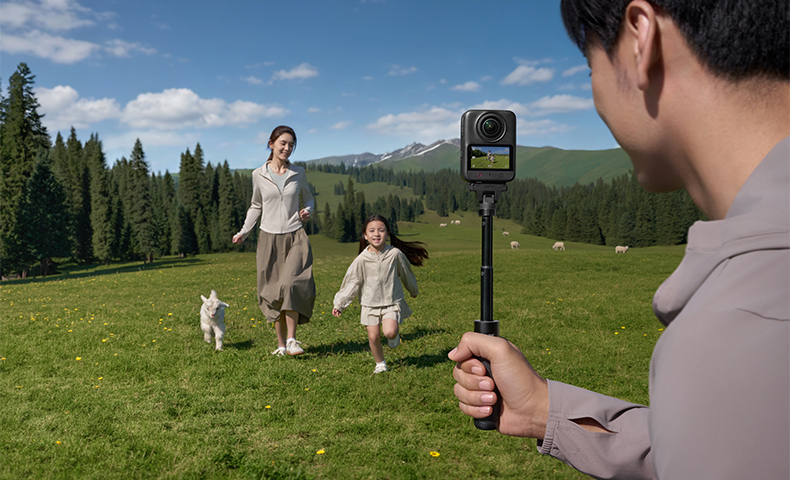
Spotlight Follow [4], Auto-Framing
Skip the reframing in post. AI algorithms intelligently track and lock onto your subject, keeping it in the centre of the frame no matter how the camera rotates. Shoot and share instantly to make every moment cinematic.
Smart Editing, One-Tap Magic
Leave the heavy lifting to DJI Mimo. The app packs intuitive smart features, helping you create impressive videos with just one tap.
NFC Quick Connect
Tap your smartphone [13] to the camera’s NFC area to quickly connect to DJI Mimo. During playback, tap to transfer footage or go directly to the editing page [14].
Dual Recording
Capture sweeping scenery and your reactions at the same time. DJI Mimo displays front and rear views on the same screen, easily doubling the fun.
Highlights
DJI Mimo automatically selects the best clips from your footage. It also supports custom adjustments, saving you time without compromising creativity.
Camera Movement
DJI Mimo uses dynamic camera movements to create vlog transition magic. Seamlessly blend multiple clips for a flawless, one-take effect.
Extensive Templates
Access a rich library of built-in templates in the Mimo app tailored for various scenarios, making it effortless to craft viral-ready videos.
One-Tap Edit
DJI Mimo intelligently analyses your footage and applies the perfect template. Generate polished videos with just one tap and share instantly.
Pro Editing, Limitless Creation
Smoothly connect to professional editing workflows. DJI Mimo and DJI Studio streamline the post-production process, maximising your efficiency.
Plugin for DaVinci Resolve
Import 360° video files exported from DJI Studio directly using the plugin, accelerating your professional workflow.
AI High-Precision Smart Stitching
DJI Mimo and DJI Studio feature a high-precision smart stitching algorithm for effortless group shots. It precisely optimises subjects to ensure natural seam transitions, keeping everyone fully in the frame.
Intelligent Tracking & Speed-Up Tracking
Automate subject selection and drastically cut down processing times. DJI Mimo and DJI Studio boost editing efficiency, turning your highlights into finished videos faster.
Adaptive Tone & HDR
DJI Mimo and DJI Studio utilise built-in Adaptive Tone and HDR to enhance image quality, delivering balanced lighting and rich details in high-contrast scenes.
Pro Filters & Custom LUTs
Both DJI Mimo and DJI Studio support Pro Filters and custom LUT imports for personalised colour profiles.
Any Scene, Any Angle
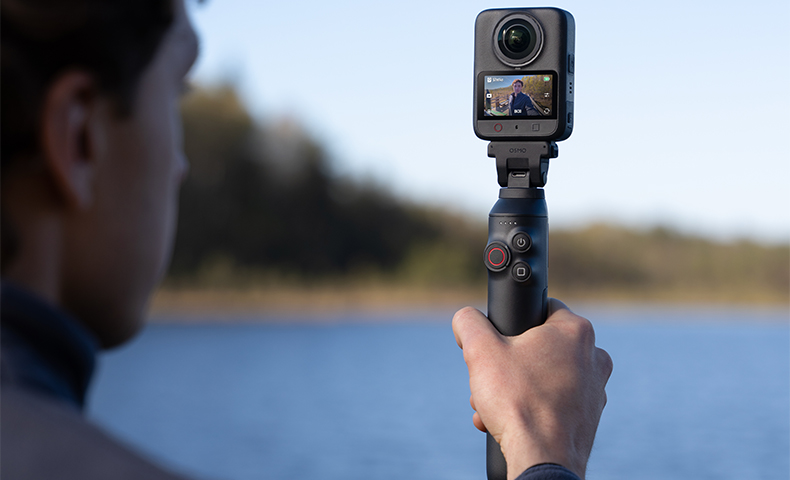
Light enough to take anywhere and powerful enough to shoot anything. Osmo 360 II seamlessly follows your lead to capture life on a cinematic scale.
Motorcycling
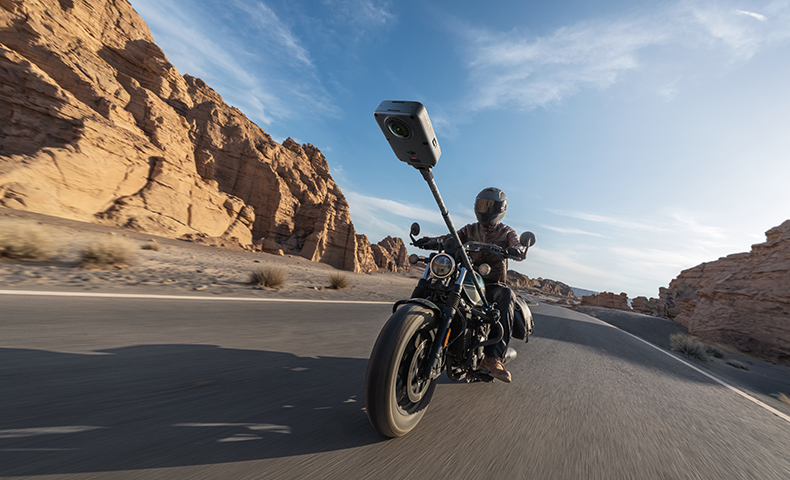
Securely mount your camera anywhere for unique multi-angle shots. With Gesture Control and Voice Control [15], you can start recording instantly without releasing the throttle.
Diving
Ready for underwater action up to 10 m [16] out of the box. For deep dives, seal it inside the Invisible Waterproof Case [23] and explore down to 50 m. Capture the deep blue and vibrant fish in one epic shot.
Skiing
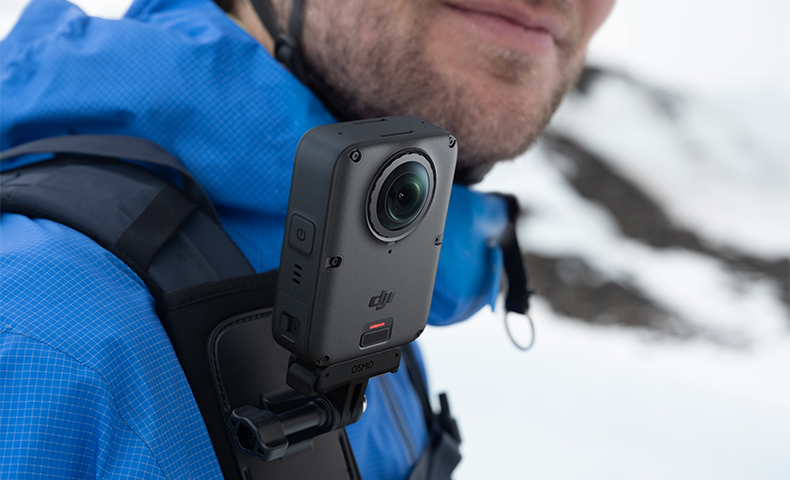
Shoot flawlessly down to -20° C. Double-twist the selfie stick [5] to start shooting. Unlock aerial views with the 2.5m Extended Carbon Fibre Selfie Stick [5], and add Motion Blur effect [17] for cinematic runs.
Mountain Biking / Road Cycling
Powerful stabilisation smooths out the rough trails. Add the Sports Dashboard [18] overlay for data-rich, engaging cycling videos.
Vlogging
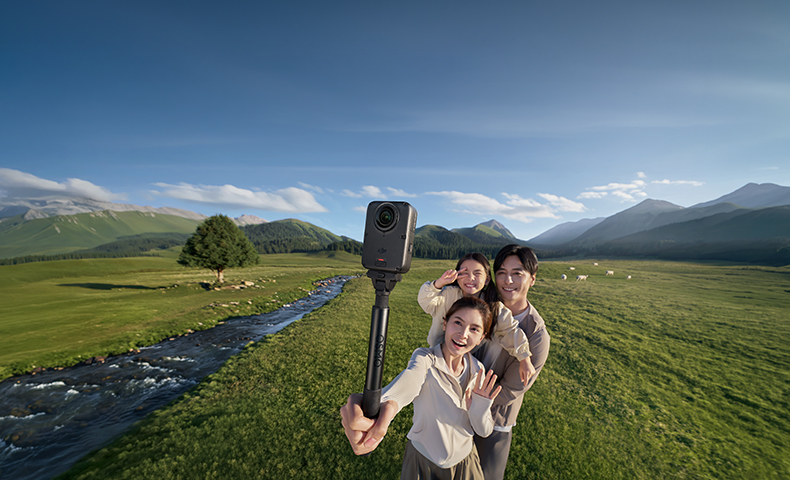
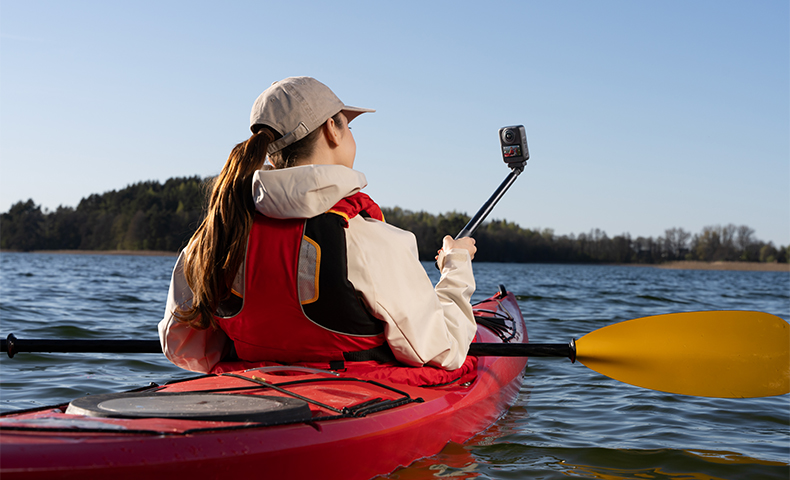
The Invisible Selfie Stick [5] acts as your on-the-go camera crew. Paired with Dual Recording, the camera captures the passing scenery and your friends in a single frame, making everyday stories more immersive.
Pack Light, Create Freely
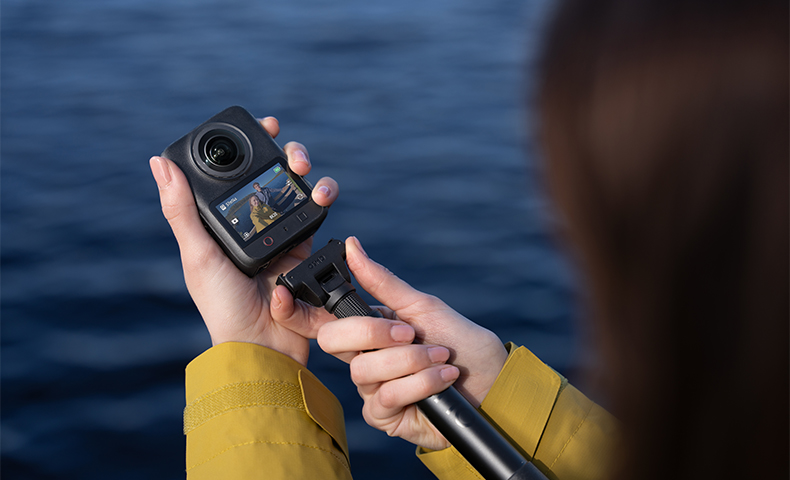
Ultra-Hard [3], Replaceable Lenses
Both lenses feature an ultra-hard optical film [3] for improved scratch and wear resistance. With the new replaceable lens design, you can swap out a damaged lens quickly and keep shooting.
183g Lightweight Body
At just 183g, this compact powerhouse is effortlessly portable, ensuring you are always ready when inspiration strikes.
105GB Built-in Storage
With 105GB of built-in storage, you can shoot right out of the box. No microSD card? No problem. Enjoy the absolute freedom to create anywhere.
100-Min 8K Recording [19]
Powered by the Extreme Battery Plus, shoot up to 100 minutes of continuous 8K/30fps video [19], and fast-charge to 80% in just 22 minutes [20].
Made to Match, Ready in a Snap
OsmoAudio Direct Microphone Connection [21]
The built-in four-mic array and wind noise reduction design deliver crisp audio straight from the camera. Via DJI OsmoAudio, connect directly to microphones like DJI Mic 3 and DJI Mic Mini 2 [21] to capture clear two-person conversations without a receiver. Enable Built-in Mic Audio Backup to simultaneously record ambient sound, adding an immersive feel to your footage.
Osmo Dual-Direction Quick-Release & 1/4″ Threaded Mount
The Osmo dual-direction quick-release design enables magnetic attachment on both sides. Featuring a 1/4″ thread, it easily connects to DJI Osmo ecosystem accessories and traditional camera gear, unlocking unique angles for any scene.
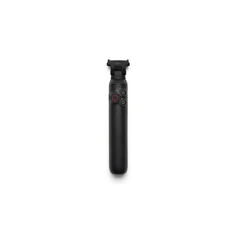
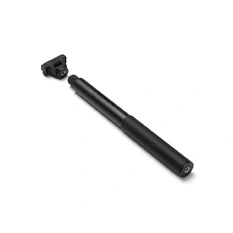
Osmo 360 II Battery Extension Rod
Paired with the Battery Extension Rod [5], it delivers an extra 180 minutes of runtime [19], so you can confidently handle extended shoots.
Extensive Accessory Ecosystem
A robust lineup of accessories adapts to any scenario and angle, empowering you to easily capture standout, creative shots.
- When capturing 360° content, each of Osmo 360 II’s two CMOS sensors features an imaging area equivalent to that of a 1-inch CMOS sensor with a 4:3 aspect ratio.
- Dynamic range data was measured in a controlled laboratory environment. In high-contrast scenes, set the Metering Mode to Front and Back Metering for actual use. In D-Log M colour profile, the maximum dynamic range reaches up to 13.5 stops.
- An upgraded ion sputtering coating process is applied to the surfaces of both lenses. After enduring 2,000 rubs with steel wool, the Osmo 360 II lens coating remains smooth and flat without affecting optical imaging. Data was collected in a controlled environment and should be taken as reference only.
- Spotlight Follow mode supports exporting flat video at up to 4K/30fps.
- Related accessories are sold separately.
- Recommended for night scenes with illuminance above 10 lux.
- 16K 360° Timelapse videos can only be exported via DJI Studio. The DJI Mimo app supports previewing only and does not support exporting.
- Using native 8K/60fps 360° footage, DJI Studio’s AI frame interpolation can generate up to 8× slow-motion video, achieving a smoothness equivalent to cropping 8K/480fps 360° footage. Since 360° video requires field-of-view cropping when exported as a flat video, the final export resolution depends on the actual software settings.
- Only supported on Mac computers with Apple silicon.
- Requires the Osmo Vortex Rotating Handle, which is sold separately.
- D-Log M is not supported in Photo, Timelapse, or Endurance Mode. When D-Log M is enabled, Adaptive Tone and Film Tone are unavailable.
- Requires exporting via the DJI Mimo app or DJI Studio.
- Before using this feature, ensure your smartphone has NFC enabled and the DJI Mimo app installed.
- Playing back single-lens files or selecting multiple pano files will trigger downloads to your phone. Playing back a single pano video will take you directly to the panorama video editing interface in the DJI Mimo app.
- For best results, use Voice Control within 1 metre in a quiet environment, and Gesture Control within 2 metres. The actual effective range may vary with firmware updates.
- Before use, please ensure the battery compartment cover and USB-C Port Cover are securely closed. It is not recommended to use the camera without the Waterproof Case for long-term underwater shooting or in environments with high water impact pressure. The camera has an IP68 waterproof rating. Do not use the camera in hot springs or extreme underwater environments, or let it come into contact with corrosive or unknown liquids. The camera alone is waterproof to a depth of 10 metres, but due to the convex fisheye lens design, underwater light refraction may cause image distortion and stitching errors. Therefore, it is not recommended to use the camera without the Waterproof Case for underwater shooting.
- Motion Blur is currently only supported on Mac computers with Apple silicon (DJI Studio), and on iPhone 14 and later models (DJI Mimo app).
- Applicable to cycling data from Apple Watches, Garmin devices, or third-party FIT files.
- Measured under laboratory conditions at 25° C, while recording 8K/30fps 360° video, with Wi-Fi off, Gesture Control off, Voice Control off, Editing Assistant off, and the screen off. Data was collected in a controlled environment and should be taken as reference only. When activating and using Osmo 360 II in the EU and the UK, actual battery life may vary due to local regulations on product operating temperatures. Refer to the actual user experience.
- Measured in a laboratory environment at 25° C using a USB-C charger that supports the standard PD 3.0 protocol with a maximum PD output power of 30 W or above, with the photo and video functions turned off and the screen off.
- Direct connection to the first-generation DJI Mic is not supported. DJI microphones are sold separately.
- In Panoramic Video mode, Osmo 360 supports recording up to 4K/100fps panoramic videos for a 4x slow-motion effect. This effect must be achieved by slowing down the footage in post-production.
- Osmo 360 Invisible Waterproof Case is sold separately. When using the Osmo 360 Invisible Waterproof Case underwater, the safe stitching distance is 1 m. Data was collected in a controlled water pressure environment in a DJI laboratory and should be taken as reference only. Actual performance may vary due to the specific diving environment and product condition.
Product Specifications
General
Dimensions: 61×36.3×81 mm (L×W×H)
Weight: 183 g
Waterproof: 10 m without the Waterproof Case, 50 m with the Waterproof Case
Data was collected in a controlled water pressure environment in a DJI laboratory and should be taken as reference only. Actual performance may vary due to the specific diving environment and product condition. Before use, please ensure the battery compartment cover and USB-C port cover are securely closed. Osmo 360 II has an IP68 waterproof rating per GB/T 4208-2017 and IEC 60529-2013. Do not use the camera in hot springs or extreme underwater environments, or let it come into contact with corrosive or unknown liquids. The camera alone is waterproof to a depth of 10 metres, but due to the convex fisheye lens design, underwater light refraction may cause image distortion and stitching errors. Therefore, it is not recommended to use the camera without the Waterproof Case for underwater shooting. Osmo 360 Invisible Waterproof Case is sold separately. When using the Osmo 360 Invisible Waterproof Case underwater, the safe stitching distance is 1 m.
Number of Microphones: 4
Touchscreens: Size: 2.0 inches
Resolution: 314×556
Brightness: 800 cd/m²
Supported SD Cards: microSD (up to 1 TB)
Recommended microSD Cards: Recommended Models:
Kingston CANVAS Go! Plus 64GB U3 A2 V30 microSDXC
Kingston CANVAS Go! Plus 128GB U3 A2 V30 microSDXC
Kingston CANVAS Go! Plus 256GB U3 A2 V30 microSDXC
Kingston CANVAS Go! Plus 512GB U3 A2 V30 microSDXC
Kingston CANVAS Go! Plus 1TB U3 A2 V30 microSDXC
Lexar Professional SILVER PLUS 64GB U3 A2 V30 microSDXC
Lexar Professional SILVER PLUS 128GB U3 A2 V30 microSDXC
Lexar Professional SILVER PLUS 256GB U3 A2 V30 microSDXC
Lexar Professional SILVER PLUS 512GB U3 A2 V30 microSDXC
Lexar Professional SILVER PLUS 1TB U3 A2 V30 microSDXC
Camera
Sensors: Dual 1/1.1-Inch Square CMOS Sensors
Aperture: f/1.9
ISO Range: 100-51200
Electronic Shutter Speed: Photo: 1/8000s to 30s
Video: 1/8000s to the limit of frames per second
Max Photo Resolution: Panoramic Photo:
2:1, 15520×7760 (120 MP)
Single-Lens Photo:
4:3, 6400×4800 (30.72 MP)
Panoramic Video: 8K: 7680×3840@24/25/30/48/50/60fps
6K: 6000×3000@24/25/30/48/50/60fps
Panorama - SuperNight: 8K: 7680×3840@24/25/30/48/50/60fps
6K: 6000×3000@24/25/30/48/50/60fps
Panorama - Selfie Mode: 4K: 3840×3840@25/30/50/60fps
3K: 3000×3000@25/30/50/60fps
Panorama - Spotlight Follow: 4K@24/25/30fps
2.7K@24/25/30fps
Panorama - Slow Motion: 4K: 3840×1920@100/200/240fps
Panorama - Timelapse: Hyperlapse
8K@25/30fps: Auto/×2/×5/×10/×15/×30
Timelapse
16K@25/30fps
8K@25/30fps
Modes: Clouds (10 mins/2s), Sunset (1 hour/3s), Custom
Custom Intervals: 2/3/4/5/6/8/10/15/20/25/30/40s, 1/2/5/30/60 mins
Duration: 5/10/20/30 mins, 1/2/3/5 hours, ∞
Panorama - Vortex: 8K: 7680×3840@100/120fps
6K: 6000×1500@180/200fps
Single Lens - Video: 4K (4:3): 3840×2880@25/30/50/60fps
4K (16:9): 3840×2160@25/30/50/60fps
2.7K (4:3): 2688×2016@25/30/50/60fps
2.7K (16:9): 2688×1512@25/30/50/60fps
Single Lens - SuperNight: 4K (4:3): 3840×2880@25/30fps Boost Video
4K (16:9): 3840 × 2160@25/30fps Boost Video
2.7K (4:3): 2688×2016@25/30fps Boost Video
2.7K (16:9): 2688×1512@25/30fps Boost Video
Single Lens - Boost Video: 4K (1:1): 3840×3840@25/30/50/60fps
4K (4:3): 3840×2880@25/30/50/60/100/120fps
4K (16:9): 3840×2160@25/30/50/60/100/120fps
4K (9:16): 2160×3840@25/30/50/60/100/120fps
2.7K (1:1): 2688×2688@25/30/50/60fps
2.7K (4:3): 2688×2016@25/30/50/60/100/120fps
2.7K (16:9): 2688×1512@25/30/50/60/100/120fps
2.7K (9:16): 1512×2688@25/30/50/60/100/120fps
Stabilisation: EIS:
RockSteady 3.0
HorizonSteady
In Panoramic Video mode, you can choose Stabilisation mode when exporting via DJI Mimo app or DJI Studio. In Single-Lens mode, HorizonSteady is only supported for regular flat videos with a standard field of view (16:9, distortion-corrected) at frame rates up to 60fps; in Single-Lens Boost Video mode, HorizonSteady is only supported for videos at frame rates up to 60fps.
Pre-Rec: Pre-Recording Duration: 5/10/15/30 s, 1/2/5 mins
Max Video Bitrate: 220Mbps (600Mbps for 16K 360° Timelapse Video)
Supported File System: exFAT
Photo Format: JPEG, RAW
Video Format: OSV, MP4 (HEVC)
Built-in Storage Capacity: 128GB built-in storage (105GB available); storage can be expanded via microSD card.
Audio Recording: 48 kHz 16-bit; AAC
Safe Stitching Distance: ≥ 75 cm
When using the Osmo 360 Invisible Waterproof Case underwater, the safe stitching distance is 1 m.
Battery
Type: Li-ion 1S
Capacity: 2150 mAh
Energy: 8.3 Wh
Voltage: 3.86 V
Operating Temperature: -20° to 45° C (-4° to 113° F)
Charging Temperature: 5° to 40° C (41° to 104° F)
Operating Time: Supports up to 100 minutes of 8K/30fps panoramic video recording
Measured under laboratory conditions at 25° C (77° F), while recording 8K/30fps 360° video, with Wi-Fi off, Gesture Control off, Voice Control off, Editing Assistant off, and the screen off. Data was collected in a controlled environment and should be taken as reference only. When activating and using Osmo 360 II in the EU and the UK, actual battery life may vary due to local regulations on product operating temperatures. Refer to the actual user experience.
Connection
Wi-Fi Operating Frequency: 2.400-2.4835 GHz
5.150-5.250 GHz
5.725-5.850 GHz
Wi-Fi Protocol: Wi-Fi 6
802.11 a/b/g/n/ac/ax
Wi-Fi Transmitter Power (EIRP): 2.4 GHz: < 20 dBm (CE/SRRC/MIC)
5.1 GHz: < 23 dBm (CE/SRRC/MIC)
5.8 GHz: < 23 dBm (SRRC), < 14 dBm (CE)
Bluetooth Operating Frequency: 2.400-2.4835 GHz
Bluetooth Transmitter Power (EIRP): < 13 dBm
Bluetooth Protocol: BLE 5.4, BR/EDR
In the box
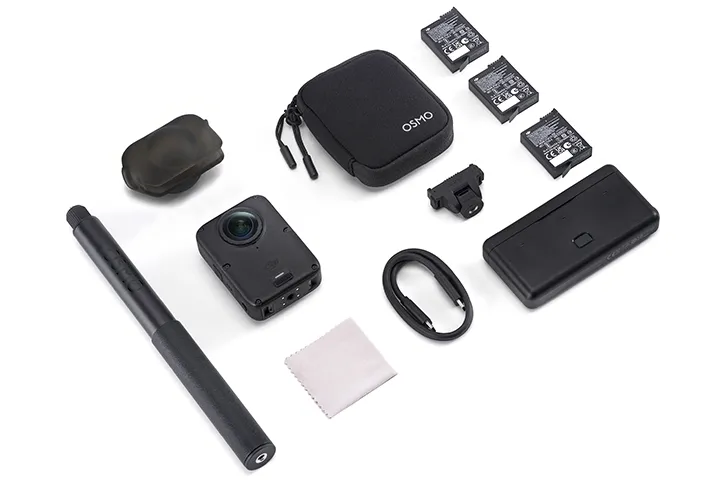
DJI Osmo 360 II × 1
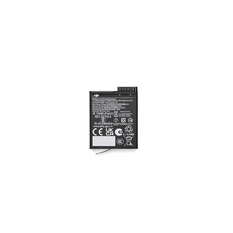
Osmo Extreme Battery Plus (2150 mAh) × 3
Osmo Multifunctional Battery Case 3 × 1
Osmo 360 Camera Protective Pouch × 1
Osmo Lens Cleaning Cloth × 1
USB-C to USB-C PD Cable (USB 3.1) × 1
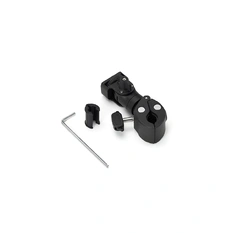
Osmo Adjustable Dual-Direction Quick-Release Adapter Mount × 1
Osmo 1.2m Invisible Selfie Stick × 1
Osmo 360 Silicone Lens Cap 2 × 1
Quick Start Guide × 1
Safety Guidelines × 1
WHY BUY FROM US?
By buying from Ferntech, you'll have the confidence that you are dealing directly with New Zealand's leading drone experts. Our staff are knowledgable drone pilots who offer expert advice, trusted support and superior specialist service. Only through us will you receive a full New Zealand warranty, phone and email support, and access to our certified Repairs Centre with DJI-qualified drone technicians. And we guarantee that we will have the best prices on the market — if not let us know and we will match any price (conditions apply).
Warranty Details
1 year warranty
Camera
What updates does Osmo 360 II have compared to Osmo 360?
Osmo 360 II primarily features the following key upgrades compared to Osmo 360:
1. Supports native 360° video at up to 8K/60fps, delivering both high resolution and high frame rates.
2. Captures 360° video with up to 14.5 stops of dynamic range [1], preserving maximum detail in highlights and shadows.
3. Features AI SuperNight 2.0 at up to 8K/60fps for vastly improved low-light performance.
4. Both lenses feature an upgraded ion sputtering coating for enhanced scratch resistance [2], paired with a new replaceable design.
5. New Spotlight Follow mode [3] automatically tracks the subject for precisely framed 360° video. Easily export subject-tracked 4K flat videos via the DJI Mimo app or DJI Studio, skipping the tedious edits.
6. Supports shooting up to 8K/60fps 360° video. With DJI Studio's AI frame interpolation, it exports buttery-smooth slow motion, equivalent to cropped 8K/480fps. [4]You can also capture in 4K/240fps to unlock up to 64× slow motion [5] in post.
7. Osmo All-Scenario Ecosystem [6]: Features the Osmo Dual-Direction Quick-Release design, tap to connect via NFC, and more. See the official product page for details.
1. Dynamic range data was measured in a controlled laboratory environment. In high-contrast scenes, set the Metering Mode to Front and Back Metering for actual use. In D-Log M colour profile, the maximum dynamic range reaches up to 13.5 stops.
2. An upgraded ion sputtering coating process is applied to the surfaces of both lenses. For details, refer to the product page on the official DJI website.
3. Spotlight Follow mode supports exporting flat video at up to 4K/30fps.
4. Using native 8K/60fps 360° footage, DJI Studio's AI frame interpolation can generate up to 8× slow-motion video, achieving a smoothness equivalent to cropping 8K/480fps 360° footage. Since 360° video requires field-of-view cropping when exported as a flat video, the final export resolution depends on the actual software settings.
5. Only supported on Mac computers with Apple silicon.
6. Related accessories are sold separately.
What are the advantages of Osmo 360 II's native 8K/60fps 360° video?
Equipped with a high-performance ISP chip and 1-inch imaging*, Osmo 360 II captures native 8K/60fps 360° video with the following advantages:
1. Delivers smoother footage in high-speed scenarios, effectively reducing motion blur while balancing high resolution and high frame rates.
2. When played on NTSC-standard devices like smartphones and computer screens, the native 8K/60fps video greatly matches the display's refresh rate. This effectively reduces stuttering for a smoother viewing experience.
3. Supports shooting 2x slow motion in 8K resolution.
4. Easily matches the mainstream frame rates of smartphones and handheld cameras. This eliminates the need for frame rate conversion when editing footage from multiple devices, effectively preventing skipped frames and ensuring a smoother post-production workflow.
* When capturing 360° content, each of Osmo 360 II's two CMOS sensors features an imaging area equivalent to that of a 1-inch CMOS sensor with a 4:3 aspect ratio.
How do I protect the lenses of Osmo 360 II?
Osmo 360 II's dual fisheye lenses are treated with multi-layer ion hardening and an advanced ultra-hard optical film for superior scratch and wear resistance. However, as high-precision optical components, careful handling is still required:
1. When storing the camera, use the silicone lens cap or place the camera in the camera protective pouch to prevent scratches from keys or sand. Before use, check the inside of the cap or pouch to ensure no sand or debris is trapped inside.
2. Before shooting, remove the silicone lens cap or camera pouch and wipe the lens clean to ensure it is free of fingerprints and smudges that may affect image quality.
3. When shooting in complex environments prone to impacts, we recommend using the Osmo 360 Transparent Lens Protectors* for enhanced safety.
4. With the replaceable lens design, the outer lens can be replaced using the Osmo 360 II Lens Replacement Kit** in case of accidental damage.
* Osmo 360 Transparent Lens Protectors are sold separately.
** Osmo 360 II Lens Replacement Kit is sold separately.
What resolution settings does Osmo 360 II support?
Supports the following resolutions:
Normal:
- Panoramic Video:
8K: 7680 × 3840@24/25/30/48/50/60fps
6K: 6000 × 3000@24/25/30/48/50/60fps
- Single-Lens Video:
4K (4:3): 3840 × 2880@25/30/50/60fps
4K (16:9): 3840 × 2160@25/30/50/60fps
2.7K (4:3): 2688 × 2016@25/30/50/60fps
2.7K (16:9): 2688 × 1512@25/30/50/60fps
- Single-Lens Boost Video:
4K (1:1): 3840 × 3840@25/30/50/60fps
4K (4:3): 3840 × 2880@25/30/50/60/100/120fps
4K (16:9): 3840 × 2160@25/30/50/60/100/120fps
4K (9:16): 2160 × 3840@25/30/50/60/100/120fps
2.7K (1:1): 2688 × 2688@25/30/50/60fps
2.7K (4:3): 2688 × 2016@25/30/50/60/100/120fps
2.7K (16:9): 2688 × 1512@25/30/50/60/100/120fps
2.7K (9:16): 1512 × 2688@25/30/50/60/100/120fps
SuperNight:
- Panoramic Video:
8K: 7680 × 3840@24/25/30/48/50/60fps
6K: 6000 × 3000@24/25/30/48/50/60fps
- Single-Lens Video:
4K (4:3): 3840 × 2880@25/30fps
4K (16:9): 3840 × 2160@25/30fps
2.7K (4:3): 2688 × 2016@25/30fps
2.7K (16:9): 2688 × 1512@25/30fps
How does Osmo 360 II make the selfie stick invisible? What should be noted when using this feature?
Osmo 360 II is equipped with two fisheye lenses, each capable of capturing images with an over 180° field of view. During shooting, the camera uses algorithms to stitch together images captured by the two lenses and utilizes their overlapping area to "erase" the selfie stick at the bottom of the camera, achieving the seamless invisible effect.
For the ideal invisible effect, it is recommended to use the official Invisible Selfie Stick*. When mounting it, ensure that the camera and the selfie stick form a perfectly straight line so the algorithm functions properly.
The invisible effect may not work as intended if an adjustable quick-release adapter creates an angle between the camera and the stick, or if the mounting connection deviates from the camera's front-rear plane.
* The Invisible Selfie Stick is sold separately.
What is the safe stitching distance for Osmo 360 II?
For optimal panoramic stitching effect, it is recommended to keep Osmo 360 II at least 0.75 metres* away from the subject. If the distance is too close, the images captured by the left and right lenses may differ significantly, which may result in unnatural stitching or anomalies. As long as the distance is greater than the safe minimum, the camera will automatically produce smooth and natural stitching results.
* When using the Osmo 360 Invisible Waterproof Case underwater, the safe stitching distance is 1 m.
What video formats does Osmo 360 II support?
OSV for panoramic videos and MP4 (HEVC) for flat videos.
Does Osmo 360 II support switching lenses during Single-Lens Video recording?
Yes. Osmo 360 II allows you to switch between lenses during Single-Lens Video recording without interruptions. This feature supports recording specifications up to and including 5K/60fps.
Can Osmo 360 II shoot slow-motion videos?
Yes. In Panoramic Video mode, it supports up to 8× slow motion (4K/240fps), and in Single-Lens Video mode, it supports up to 4× slow motion (4K/120fps) flat video.
What is the D-Log M colour profile of Osmo 360 II?
D-Log M is a colour profile that provides users with greater flexibility for colour grading in post-production. By increasing the brightness of shadow areas and suppressing highlights, it preserves more image details. When shooting with D-Log M, the footage will have reduced saturation and contrast, but it retains more colour and brightness information, making it easier to create different video styles during post-processing.
How do I export my photos and videos?
There are three options available:
1. Connect to the DJI Mimo app and download content from the microSD card and built-in storage to your smartphone.
2. Use a card reader to export content from the microSD card to your computer or smartphone.
3. Swipe down from the camera view, tap the Settings icon, and select USB Mode. Follow the on-screen prompts to connect the camera to a computer or smartphone with a USB-C port using a USB-C cable. You can then export content from the microSD card and built-in storage.
Where is the footage saved in Osmo 360 II?
The footage is saved either on the microSD card inserted into the camera body or in the camera's built-in storage.
Does Osmo 360 II use prime lenses?
Yes, Osmo 360 II uses two fisheye prime lenses.
Can I shoot HDR videos with Osmo 360 II?
Osmo 360 II records with high dynamic range by default, so there is no separate HDR shooting mode. You can further enhance image quality using the HDR features in the DJI Mimo app or DJI Studio during post-production.
How do I use Spotlight Follow on Osmo 360 II?
Spotlight Follow mode* automatically locks onto and tracks a subject in 360°, recording both the subject and their perspective. It is ideal for skiing, cycling, and other self-recording or follow-cam scenarios.
You can use the Register Subject feature when using this mode for the first time. The camera will automatically detect and follow the registered subject once they enter the frame. To change the subject, double-tap the white box on the screen; a green box will appear to indicate the new subject is locked. The view will then move in sync with the subject.
If the subject is lost, the green box turns red. If the subject remains lost for more than five seconds, the camera will prompt that the subject is lost. Tracking will not resume automatically even if the subject re-enters the frame; you must manually re-lock the subject to continue.
360° videos shot in Spotlight Follow mode* eliminate the need for manual reframing in post. You can export flat videos that continuously keep the subject in frame via the DJI Mimo app or DJI Studio.
* Spotlight Follow mode supports exporting flat video at up to 4K/30fps.
Operation
What App do I use to control Osmo 360 II with my smartphone?
The DJI Mimo app. It allows you to sync photos and videos, edit, and share.
How do I activate Osmo 360 II?
You can follow the steps below to activate the device:
1. Download the DJI Mimo app by scanning the QR code shown on the camera screen prompt or from an app store.
2. Press and hold the Quick Switch Button to turn on Osmo 360 II.
3. Enable Wi-Fi and Bluetooth on the mobile device.
4. After launching the DJI Mimo app, tap on the camera icon on the home page to connect the camera. Follow the on-screen instructions for further steps.
5. After connecting Osmo 360 II to the DJI Mimo app, you will be prompted to activate the device. Complete the activation by following the prompts on the app.
How do I update the firmware on Osmo 360 II?
The DJI Mimo app will send firmware push messages automatically. Follow the prompts to complete the update.
How do I switch between the front and rear lenses?
Tap the front/rear lens switch icon in the lower right corner of the touchscreen, or press the physical button at the lower right of the touchscreen, which is set to switch between the front and rear lenses by default.
Does the screen support touch control?
Yes. You can control parameter settings, mode switching, video playback, and more.
Does Osmo 360 II support Voice Control?
Yes. Osmo 360 II supports voice commands in English and Mandarin Chinese. It's recommended to use Voice Control within 1 m from the camera in a relatively quiet environment.
English Commands:
Start Recording
Stop Recording
Take Photo
Shut Down
Does Osmo 360 II support Gesture Control?
Yes. Either hand can be detected within 2-metre range*. Raise an open palm to start or stop video recording, or to take a photo.
* The effective distance may vary with future firmware updates.
Does Osmo 360 II support Twist Shot?
Yes. Twist the selfie stick twice around axis, with each twist greater than 45°, to take photo or start/stop video recording.
How do I enable Livestream on Osmo 360 II?
1. Please update your Osmo 360 II firmware and the DJI Mimo app to the latest version, then connect Osmo 360 II to the DJI Mimo app.
2. Enter the Preview interface in DJI Mimo app, and switch to Single Lens mode. At this point, the "Livestream" option will appear on the right side of the interface.
3. Tap Livestream to open the settings.
4. Select a live streaming platform and tap Start Livestream Settings to enter the settings page. Please connect to a secured Wi-Fi network with Internet access and adjust the streaming settings as required.
5. Log in to your live streaming platform account. Please make sure you have completed identity verification and agreed to the required terms.
6. When setup is complete, tap Start Livestream.
How do I achieve 64× slow motion?
Shoot 4K/240fps 360° video in Pano Slow Motion, then apply an 8× slow-motion effect in DJI Studio* to generate a 4K/1920fps 360° video. This achieves 64× slow motion and allows you to export flat videos.
* Only supported on Mac computers with Apple silicon.
How do I share a video that I shot?
You can save the video to your smartphone and share, or use the DJI Mimo app to upload it and share the link generated.
How can I manually set camera parameters like shutter speed and ISO?
1. On Osmo 360 II's camera view, tap the Image/Audio Settings icon on the right side, enable PRO mode in the upper right corner, and set Exposure to M (Manual) mode to adjust shutter speed and ISO parametres.
2. In the DJI Mimo app, tap the "..." icon on the camera view and enable PRO mode. Then, return to the camera view and tap the Image/Audio Settings icon to adjust shutter speed and ISO parametres.
Does Osmo 360 II have sleep mode?
Yes. When Osmo 360 II is powered on, press and hold the Quick Switch Button to enter sleep mode. To wake it up, press the Quick Switch Button once. Additionally, pressing the Shutter/Record Button once will trigger SnapShot.
What is the SnapShot feature on Osmo 360 II?
When Osmo 360 II is powered off, simply press the Shutter/Record Button to quickly power on and start recording using your preset SnapShot settings, ensuring you never miss a moment. After recording stops, the camera will automatically power off if left idle for 3 seconds.
Can I set the playback volume of Osmo 360 II?
Yes. Tap the Volume icon in the upper right corner of the playback page to turn the sound on or off. Press and hold the icon to adjust the volume.
Battery
How long is the operating time of Osmo 360 II?
Battery life supports up to 100 minutes* of 8K/30fps panoramic video recording, or up to 120 minutes with Endurance Mode on*.
* Tested under laboratory conditions at 25° C (77° F) with Wi-Fi, Gesture Control off, Voice Control off, and Editing Assistant off, while recording 8K/30fps 360° Video with the screen off. Data was collected in a controlled environment and should be taken as reference only. When activating and using Osmo 360 II in the EU and UK, actual battery life may vary due to local regulations on product operating temperatures. Refer to the actual user experience.
Does Osmo 360 II support fast charging?
Yes. You can use a USB-C charger that supports the standard PD 3.0 protocol with a maximum PD output power of 30 W or above.
Can Osmo 360 II be used while charging?
Yes.
Can I use Osmo Action series batteries with my Osmo 360 II?
Yes. Osmo Action Extreme Battery Plus (1950 mAh) and Osmo Action Extreme Battery (1770 mAh) are supported.
APP
Which mobile phones and computers are compatible with Osmo 360 II?
For details on mobile phones and computers compatible with Osmo 360 II, please check the Osmo 360 II Downloads page.
How do I edit videos shot with Osmo 360 II using desktop software?
Please refer to the Osmo 360 II tutorial video on the Downloads page.
How do I use ND filter effects?
Update DJI Studio or the DJI Mimo app to the latest version. Adjust the ND filter parametres in Motion Blur mode. ND filter effects are currently only supported on Mac computers with Apple silicon (DJI Studio), and on iPhone 14 and later models (DJI Mimo app).
Accessories
Is the Osmo 360 II quick-release mount compatible with cameras like the Osmo Action series or Osmo Nano?
It supports the dual-direction magnetic quick-release mounts of Osmo Nano and Osmo Action 6. It is not recommended for use with other cameras. While it physically fits their quick-release mounts, the magnetic connection is weak.
What accessories does Osmo 360 II have?
Osmo 360 II offers a wide range of accessories for different scenarios. For details, please refer to the product page on the official website.
Can I use Osmo 360 II's accessories with other DJI Osmo series products?
Osmo 360 II features an upgraded dual-direction magnetic quick-release design, making it compatible with Osmo Action dual-direction magnetic quick-release accessories. For more details, please check the Osmo 360 II Downloads page.
How do I mount different accessories to Osmo 360 II?
1. Attach official quick-release accessories directly via the quick-release mount.
2. Attach other accessories using the 1/4-inch threaded hole at the bottom of the camera.
Can I mount third-party action camera accessories to Osmo 360 II?
Yes. You can mount third-party action camera accessories with the Quick-Release Adapter Mount.
Is the Osmo Curved Adhesive Base Max reusable?
No, the Osmo Curved Adhesive Base Max* uses 3M adhesives that are not reusable.
* Osmo Curved Adhesive Base Max is sold separately.
How scratch-resistant are the Osmo 360 Transparent Lens Protectors? Will they easily get scratched and affect shooting?
The Osmo 360 Transparent Lens Protectors* feature a multi-layer hardened coating that provides scratch and wear resistance while minimizing image quality loss. They can easily withstand minor scrapes from normal daily use. However, because they are made of plastic, proper care is still required. Heavy impacts or abrasive friction may cause noticeable scratches. If this happens, we recommend replacing the protectors to maintain optimal image quality.
* Osmo 360 Transparent Lens Protectors are sold separately.
Can the Osmo 360 Transparent Lens Protectors be used underwater?
No. Osmo 360 Transparent Lens Protectors* are only splash-proof. Before installation, clean the camera lenses and surrounding mounting slots to ensure they are free of fingerprints, oil, or smudges. Any dust or debris on the inner or outer surfaces of the lenses or protectors will negatively affect image quality. Avoid using them in rain, snow, or during water sports, as these conditions can cause the protectors to fog up. If fogging occurs on the inside of the protectors, wipe them dry with a soft cloth before use. When removing the protectors, take care not to scratch the camera lenses.
* Osmo 360 Transparent Lens Protectors are sold separately.
What precautions should be taken when installing or removing the Osmo 360 Transparent Lens Protectors?
Before installing the Osmo 360 Transparent Lens Protectors*, carefully clean the camera lens surface and the inner surface of the Protectors with a lens cloth.
To install, hold the outer surface of the Protector with your fingers. First, align the lower latch of the Protector with the mounting position at the bottom of the camera lens and snap it into place. Then, gently push the upper latch of the Protector into the reserved slot at the top of the camera until you hear a click, indicating that one side is installed successfully. Repeat this step for the other side.
After both Protectors are installed, carefully clean the outer surface to remove any fingerprints, oil, or other stains that may affect image quality.
To remove the Protectors, gently use your thumb to lift the upper latch from the raised area on the top of the Protector, then detach the lower latch by moving it downward along the lower slot. Do not use excessive force during installation or removal to avoid damaging the Protector latches.
* Osmo 360 Transparent Lens Protectors are sold separately.
How does the Osmo 360 Invisible Waterproof Case eliminate underwater distortion?
Osmo 360 II features a specialized fisheye lens design, which can cause image distortion underwater due to light refraction. The Osmo 360 Invisible Waterproof Case* utilizes a custom optical design to correct this. It eliminates underwater distortion and remains completely invisible in your footage, ensuring clear and accurate imaging.
* For diving, we recommend using the Osmo 360 Invisible Waterproof Case (sold separately) for underwater shooting up to 50 m. Data was collected in a controlled water pressure environment in a DJI laboratory and should be taken as reference only. Actual performance may vary due to the specific diving environment and product condition. When using the Osmo 360 Invisible Waterproof Case underwater, the safe stitching distance is 1 m.
Other
Why does Osmo 360 II heat up during use?
When using high-specification, high-performance modes (such as 8K/60fps panoramic videos), the camera consumes more power, which can result in a noticeable increase in temperature. Additionally, extended recording sessions or prolonged handheld use can also cause the camera to feel warm.
How do I alleviate camera overheating?
You can try the following methods:
1. Adjust shooting specifications: Select a lower resolution and frame rate (such as 6K/24fps or 6K/30fps) to effectively reduce power consumption and alleviate heat buildup.
2. Optimize camera settings: Turn off the screen display during shooting, and disable the Wi-Fi function when not needed.
3. Improve the operating environment: Ensure the camera is used in a well-ventilated area to help dissipate heat more effectively.
Can I change the lens of Osmo 360 II?
Osmo 360 II features an all-new replaceable lens design. If the lens is accidentally damaged, the user can replace the outer lens using the Osmo 360 II Lens Replacement Kit*.
* Osmo 360 II Lens Replacement Kit is sold separately.
How do I clean the lens area of Osmo 360 II?
1. Dirt on the lens can be cleaned with a lens cleaning cloth. For dust in the cracks at the edge of the lens, use a dust blower or cotton swab for cleaning.
2. To clean water stains, oil smudges, or fingerprints on the lens, apply a few drops of lens cleaning solution on lens tissues and use a circular motion to wipe away.
Can Osmo 360 II be connected to Bluetooth or Wi-Fi?
Yes.
Is Osmo 360 II waterproof?
Yes, Osmo 360 II can be used underwater at depths of 10 m without a case*. For diving, it is recommended to use the Osmo 360 Invisible Waterproof Case**, which increases the waterproof depth up to 50 m***.
* Before use, please ensure the battery compartment cover and USB-C Port Cover are securely closed. It is not recommended to use the camera body only for long-term underwater shooting or in environments with high water impact pressure. Osmo 360 II has an IP68 waterproof rating. Do not use the camera in hot springs or extreme underwater environments, or let it come into contact with corrosive or unknown liquids. The camera alone is waterproof to a depth of 10 m, but due to the convex fisheye lens design, underwater light refraction may cause image distortion and stitching errors. Therefore, it is not recommended to use the camera body only for underwater shooting.
** Osmo 360 Invisible Waterproof Case is sold separately. When using the Osmo 360 Invisible Waterproof Case underwater, the safe stitching distance is 1 m.
*** Data was collected in a controlled water pressure environment in a DJI laboratory and should be taken as reference only. Actual performance may vary due to the specific diving environment and product condition.
What precautions should be taken when using Osmo 360 II underwater without a case?
1. Before use, ensure the battery compartment cover and USB-C Port Cover are securely closed.
2. The camera is waterproof up to 10 m without a case. However, due to the 360° camera's convex fisheye lens design, underwater light refraction may cause image distortion and stitching errors. Therefore, shooting underwater without a waterproof case is not recommended.
3. Do not use the camera in extreme water conditions, unknown liquids, hot springs, or corrosive liquids.
4. After underwater use, rinse the camera with fresh water and let it air-dry completely before next use.
* For diving, we recommend using the Osmo 360 Invisible Waterproof Case (sold separately) for underwater shooting up to 50 m. Data was collected in a controlled water pressure environment in a DJI laboratory and should be taken as reference only. Actual performance may vary due to the specific diving environment and product condition. When using the Osmo 360 Invisible Waterproof Case underwater, the safe stitching distance is 1 m.
What microSD cards does Osmo 360 II support?
Recommended Models:
Kingston CANVAS Go! Plus 64GB U3 A2 V30 microSDXC
Kingston CANVAS Go! Plus 128GB U3 A2 V30 microSDXC
Kingston CANVAS Go! Plus 256GB U3 A2 V30 microSDXC
Kingston CANVAS Go! Plus 512GB U3 A2 V30 microSDXC
Kingston CANVAS Go! Plus 1TB U3 A2 V30 microSDXC
Lexar Professional SILVER PLUS 64GB U3 A2 V30 microSDXC
Lexar Professional SILVER PLUS 128GB U3 A2 V30 microSDXC
Lexar Professional SILVER PLUS 256GB U3 A2 V30 microSDXC
Lexar Professional SILVER PLUS 512GB U3 A2 V30 microSDXC
Lexar Professional SILVER PLUS 1TB U3 A2 V30 microSDXC
Which Bluetooth headphones and headsets are compatible with Osmo 360 II?
Osmo 360 II supports the following Bluetooth headphones and headsets:
AirPods 3
AirPods 4
AirPods Pro 2
AirPods Pro 3
Sony WH-1000XM5
Bose QuietComfort Ultra II
HUAWEI FreeBuds 6
OnePlus Buds 4
OPPO Enco X3
RESO Pilot Pro
RESO Pilot Neo
Cardo EDGE
SENA 50S
Hengjiang C50 Heavy Bass Headset
VIMOTO V11X
VIMOTO V9S/X
VIMOTO V10S/X
VIMOTO V11S/X
AiRide G9+
LEXIN G2P
ASMAX F1 Pro
What should I do if dust or sand gets inside Osmo 360 II?
Osmo 360 II is dust-proof. However, if dust does get inside the device and cannot be cleaned, please contact DJI After-Sales for professional handling.
There's currently no reviews for this product, be the first to write one.