




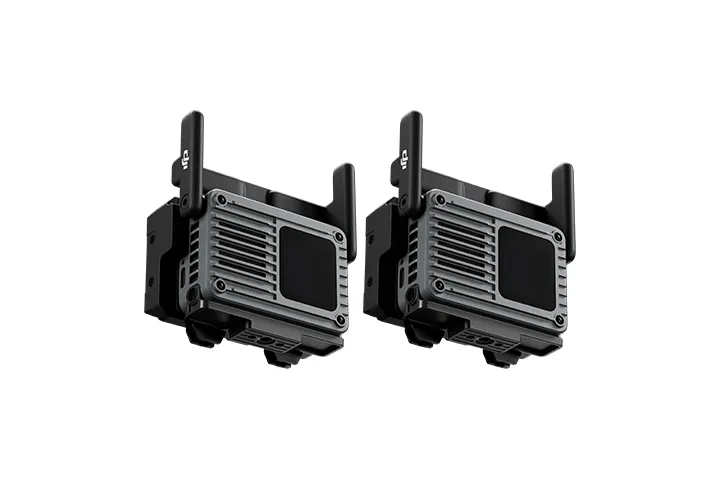
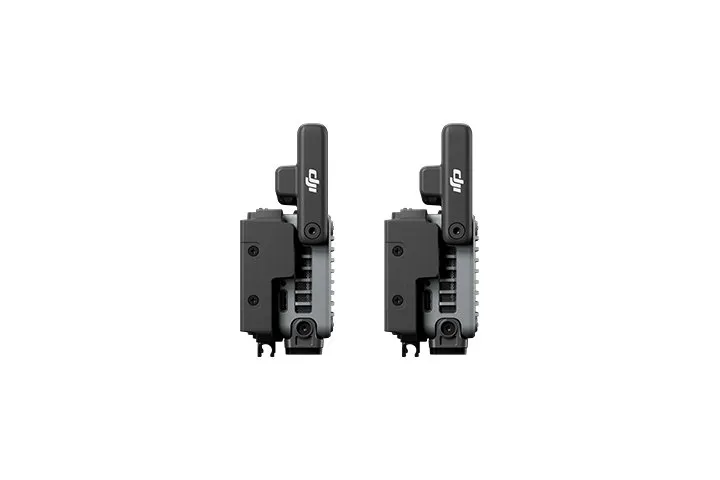
DJI SDR Transmission Combo 2
Or 4 interest-free payments of $309.75 with 
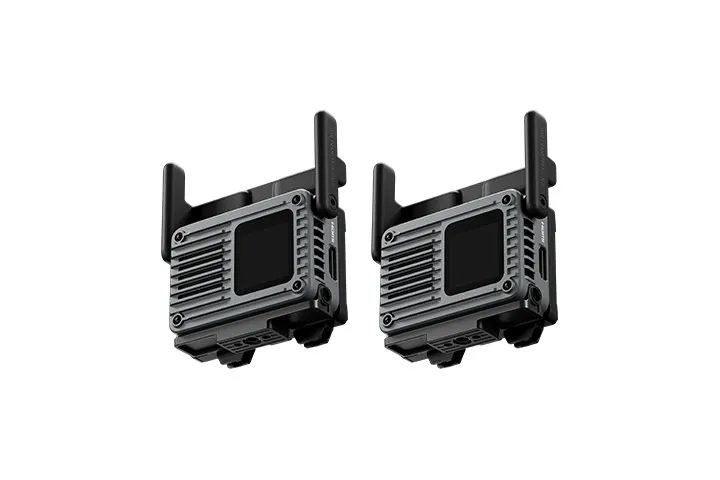
DJI SDR Transmission 2 advances SDR technology with stronger interference resistance, superior image quality, and up to 4 km range. Features 1 TX to 8 RX control, Auto Channel 2.0, DCI 4K/60fps 10-bit HDR wireless feed, and Ronin ecosystem support.
DJI SDR Transmission 2 advances SDR technology with stronger interference resistance, better image quality, and greater range[1]. Even on crowded sets, it maintains a high-bitrate, low-latency feed. A TX/RX switchable transceiver design and Ronin series[2] compatibility bring pro-grade performance to a compact, lightweight form factor.
Buy DJI SDR Transmission 2 at the official online DJI Store to enjoy DJI expert help, one-on-one exclusive customer service, professional technical support, 1% DJI Credit back on your purchase, and more.
More Reliable for Larger Sets[3]
1 TX to 8 RX With Control, Multi-Group Transmission[3]
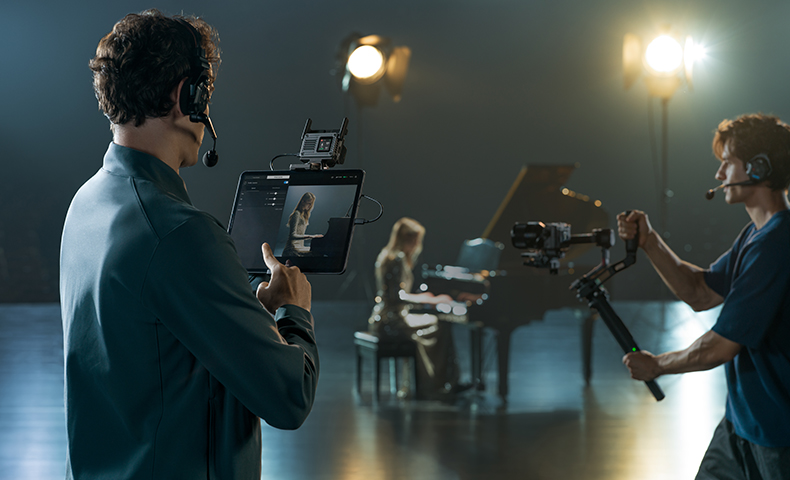
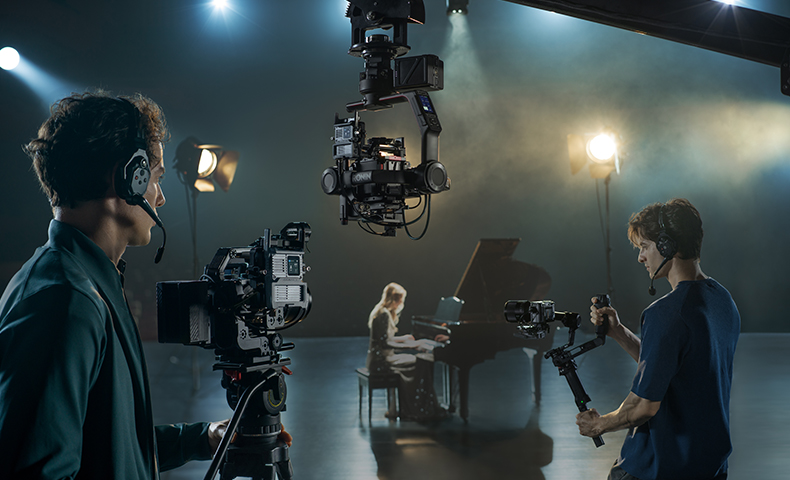
A single transmitter feeds up to eight receivers, each with remote control. Directors and DPs get a high-resolution feed, while operators and focus pullers can adjust settings and control the camera remotely. Run up to five transmitters and 40 receivers at the same time. Even in complex on-set environments, the wireless camera feed stays stable without sacrificing 4K image quality[6].
Auto Channel 2.0[4]
Smart Coordination, Enhanced Scanning. Auto Channel 2.0[4] takes over channel management on set. With Auto Mode enabled, transceivers recognise one another and intelligently coordinate frequencies. More accurate spectrum scanning and conflict diagnostics allow each unit to hop frequencies seamlessly[5] as conditions change, maintaining a stable connection despite interference, even with multiple systems running side by side.
SDR, Evolved
DCI 4K Monitoring[6]
SDR Transmission 2 transmits DCI 4K/60fps, 10-bit HDR[6], and H.265 video at bitrates up to 50 Mbps[7]. The result is rich detail, smooth colour transitions, and clear highlights and shadows, with consistent image quality across multiple cameras.
Up to 4 km Range[8]
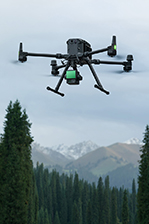
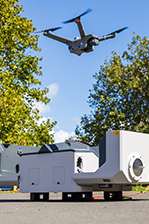
Video transmission reaches up to 4 km[8]. From open stadiums to dense mountain forests, and through demanding car-to-car shots or FPV drone work, it sustains a reliable link where you need it most.
Latency as Low as 35 ms[9]
Even with higher image quality, latency stays as low as 35 ms[9]. That keeps monitoring and remote commands, like focus pulls and gimbal moves, responsive.
Flexible by Design
TX/RX Switchable
Switch between transmitter and receiver on the fly. There is no need to decide your TX-to-RX ratio in advance, so every unit adapts to whatever the shoot calls for.
Approx. 136g Unit
The unit provides one HDMI and two USB-C ports. Its lightweight body reduces the load on handheld gimbals and mounts easily across a wide range of camera setups.
Expansion Plate[10]
Provides one SDI, one HDMI, and four USB-C ports. It also supports metadata transmission via SDI from mainstream cinema cameras like ARRI and RED.
Transceiver Cage[10]
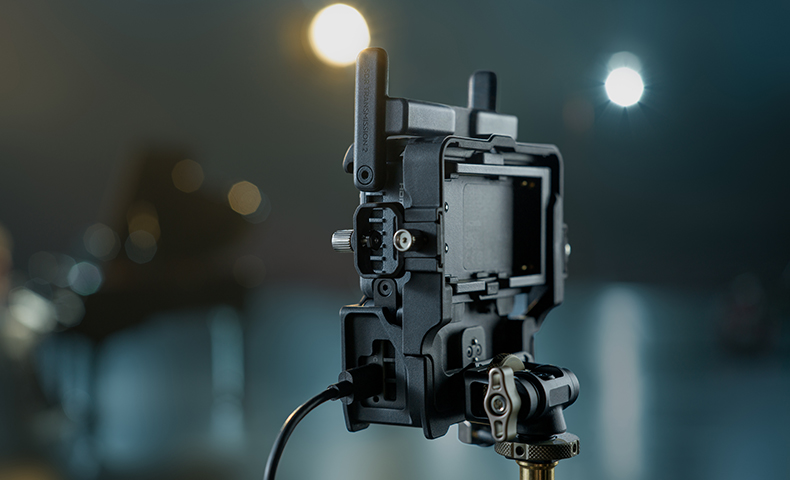
For car mounts and other outdoor setups, the cage adds rugged protection with plenty of mounting points. It locks the unit firmly onto a wide range of gimbals and rigs.
Ronin Ecosystem[2] and Beyond
Compact Systems
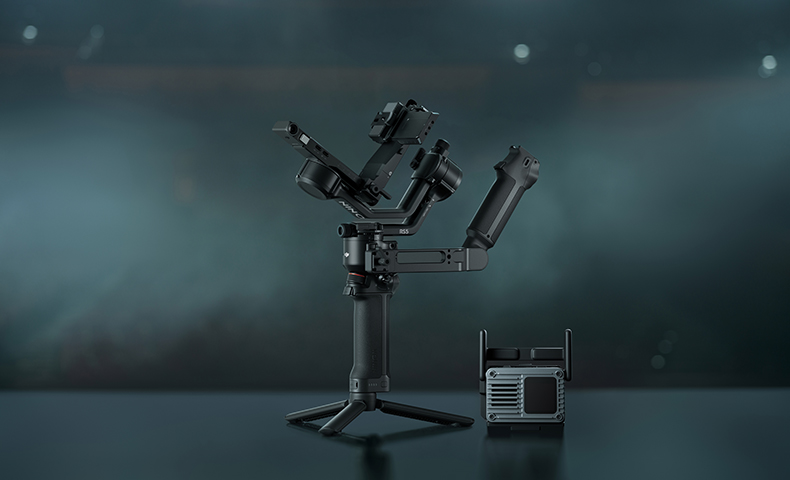
Integrates seamlessly with DJI RS series stabilisers[2]. With the DJI Ronin app, a single phone handles both monitoring and control, from operating the gimbal wirelessly to starting and stopping recording.
Pro Productions
Supports DJI Ronin 2 and Master Wheels[2]. Even with large cinema cameras on complex car mounts or crane rigs, operators can stay at the monitor and precisely control each move through the wheels.
Action Angles
Connect an Osmo Action or Pocket series device over USB-C[11] for sports, reality shows, and hard-to-reach angles. It offers a lightweight way to add a remote monitoring feed from perspectives that larger rigs cannot cover.

Professional Monitoring and Control
Camera Switching
No more rebooting, scanning, and re-pairing. Switch between camera feeds from the transceiver or the DJI Ronin app, saving valuable time on set.
Monitor Feed
Delivers an ultra-high-definition, low-latency feed to professional monitors over SDI[12], HDMI, or DP, so multiple monitors can share the same clean image.
Mobile Feed[13]
For monitoring on the move, connect a phone or tablet to the receiver over USB-C and view the feed in the DJI Ronin app. A wired link keeps it stable and high-bitrate.
DJI Ronin App[13] Monitoring Assistance Tools
The app supports professional monitoring tools such as LUT, histogram, waveform, and false colour, delivering a more efficient and precise monitoring experience.
PTP/CEC Camera Control
DJI SDR Transmission 2 supports PTP camera control[14], allowing users to view and adjust aperture, shutter speed, and ISO settings, while also enabling photo capture and video recording through the app. Additionally, it supports CEC control for Sony cameras, activating Mirror Control mode.
Control for the RS Series Stabilisers[2]
The transceiver can wirelessly control RS Series stabilisers via the DJI Ronin app, supporting Force Mobile, virtual joystick, and gimbal recentering features.
Power Supply Solutions
NP-F Power Supply
The transceiver supports industry-standard NP-F battery types with a voltage range of 6.8 to 8.4 V.
USB-C Power Supply
SDR Transmission 2 can be powered by a standard PD protocol charger[15] via USB-C, with a power input rated at 15 V/9 V[16] and 3 A.
Gimbal Power
Thanks to the integrated power supply design, the transceiver can be mounted on and powered directly by DJI RS 5, RS 4 Pro, RS 4, RS 3 Pro, Ronin 2, or Master Wheels[2], eliminating the need for a separate battery.
Compared to DJI SDR Transmission, this product features the upgraded Auto Channel 2.0, delivering better transmission performance when multiple groups of transmitters and receivers operate simultaneously. It supports video quality up to DCI 4K/60fps with a maximum encoding bitrate of 50 Mbps, and a transmission range of up to 4 km.
Supported models include DJI RS 5, RS 4 Pro, RS 4, RS 3 Pro, Ronin 2, and Master Wheels. Please note: When using with Ronin 2 or Master Wheels, the DJI SDR Transmission 2 Gimbal Control Cable (USB-C to 4-pin) is required (sold separately). When using with RS 4, RS 4 Pro, or RS 3 Pro, the DJI SDR Transmission 2 Gimbal Control Cable (USB-C to CAN) is required (sold separately). Please also note: When connecting the DJI SDR Transmission 2 Transceiver to an RS series stabiliser, remote camera control requires an additional Multi-Camera Control Cable to connect the gimbal and camera. You can use the Multi-Camera Control Cable included with the stabiliser, or purchase a compatible cable from the official DJI Store based on your camera model. For supported camera models and available control functions, refer to the "Camera & Lens Compatibility" page on the corresponding stabiliser's official website. Additionally, when the DJI SDR Transmission 2 Transceiver is connected to a stabiliser via the Quick-Release Plate, a native vertical shooting setup is not supported.
For the optimal transmission experience, it is recommended to operate no more than five transmitters simultaneously in the same area. DJI SDR Transmission 2 cannot be cross-connected with other DJI video transmission products.
Auto Channel 2.0 activates when Channel Mode is set to Auto.
- The 5.8 GHz and DFS frequency bands are prohibited in certain countries/regions. Check local laws and regulations for more information. 5.600-5.650 GHz is not used.
- DCI 4K/60fps HDR requires connection via the HDMI or DP port (bottom USB-C port) on the transceiver main unit.
- The maximum encoding bitrate is 50 Mbps, measured under controlled conditions. Actual encoding and transmission bitrates may vary depending on the environment and transmission distance.
- Measured under CE compliance using one TX and one RX in open, unobstructed, and interference-free controlled conditions.
- Camera and screen display latency are not included. Measured when shooting 1080p/60fps and 4K/60fps video.
- Sold separately.
- Supports Osmo Action 6 and Osmo Pocket series (Osmo Pocket 4 and later) via USB-C for monitoring and power supply.
- The SDI port is available on the DJI SDR Transmission 2 Expansion Plate, which is sold separately.
- Connect the transceiver (RX) to a smartphone or tablet via a USB-C to USB-C or USB-C to Lightning cable. Cable is not included.
- For details, please refer to the Camera Compatibility List at the top of this page.
- A PD power adapter with an output of 65 W or above is required.
- The input voltage is 9 V when powered via the three bottom USB-C ports on the DJI SDR Transmission 2 Expansion Plate (SDI/HDMI/USB-C). It is 15 V when powered via the transceiver's two USB-C ports or the right-side USB-C port on the Expansion Plate.
Product Specifications
Transceiver
Weight: Approx. 136 g (including antennas)
Dimensions: 76×61×25 mm (L×W×H, excluding antennas and Cold Shoe Adapter)
Ports: HDMI: Input/output
USB-C (Top): PD power input/output
USB-C (Bottom): DP input/output, PD power input/output, device activation and firmware updates, log export, phone app connection, and connection to the DJI Ronin series*, Osmo Action 6**, and Osmo Pocket series** devices
The SDI port is available on the DJI SDR Transmission 2 Expansion Plate, which is sold separately.
* Supported models include DJI RS 5, RS 4 Pro, RS 4, RS 3 Pro, Ronin 2, and Master Wheels.
** Supports Osmo Action 6 and Osmo Pocket series (Osmo Pocket 4 and later) via USB-C for monitoring and power supply.
Operating Frequency: Non-DFS Frequency Band:
2.400-2.4835 GHz
5.150-5.250 GHz
5.725-5.850 GHz
DFS Frequency Band:
5.250-5.350 GHz
5.470-5.725 GHz
The 5.8 GHz and DFS frequency bands are prohibited in certain countries/regions. Check local laws and regulations for more information. 5.600-5.650 GHz is not used.
Transmitter Power (EIRP): 2.400-2.4835 GHz:
< 20 dBm (SRRC/CE/MIC)
5.150-5.250 GHz:
< 23 dBm (SRRC/CE/MIC)
5.250-5.350 GHz:
< 23 dBm (SRRC/CE/MIC)
5.470-5.725 GHz:
< 26 dBm (CE/MIC)
5.725-5.850 GHz:
< 30 dBm (SRRC)
< 14 dBm (CE)
Maximum Bandwidth: 40 MHz
Maximum Encoding Bitrate: 50 Mbps
The maximum encoding bitrate is 50 Mbps, measured under controlled conditions. Actual encoding and transmission bitrates may vary depending on the environment and transmission distance.
Power Consumption: Standby (no external devices connected):
Single Transmitter: Approx. 5.04 W
Single Receiver: Approx. 5.31 W
1T1R Transmission:
Main Unit: Transmitter approx. 8.52 W, receiver approx. 7.58 W
Each Unit With an Expansion Plate (SDI input/output): Transmitter approx. 10.36 W, receiver approx. 8.89 W
Measured at a room temperature of 25° C (77° F), at a distance of approximately 10 meters, in a 1T1R setup, using PD for power supply.
Power Supply: USB-C Power Supply Type 1: 15 V, 3 A (PD protocol*)
USB-C Power Supply Type 2: 6.8-17.5 V DC
NP-F Battery Power Supply Voltage: 6.8-8.4 V
* A PD power adapter with an output of 65 W or above is required.
Video I/O Formats: DCI 4K: 23.98/24/25/29.97/30/50/59.94/60fps
4K UHD: 23.98/24/25/29.97/30/50/59.94/60fps
1080p: 23.98/24/25/29.97/30/50/59.94/60fps
1080i (input only on the main unit; input/output on the Expansion Plate): 50/59.94/60fps
720p: 50/59.94/60fps
4K video format is only supported via the HDMI port and the bottom USB-C port of the transceiver main unit.
Audio I/O Formats: Input Audio Format: SDI embedded, HDMI embedded, DP embedded
Output Audio Format: 16-bit, 48 kHz, stereo PCM
Video Transmission System: SDR
Minimum Video Transmission Latency: 35 ms
Camera and screen display latency are not included. Measured when shooting 1080p/60fps and 4K/60fps video.
Video Coding Format: H.265
Maximum Transmission Distance: 4 km (CE)
Measured under CE compliance using one TX and one RX in open, unobstructed, and interference-free controlled conditions.
Operating Temperature: -10° to 40° C (14° to 104° F)
Expansion Plate
Weight: Approx. 105 g
Dimensions: 76×54×25 mm (L×W×H, excluding Cold Shoe Adapter)
Ports: HDMI: Input/output
USB-C (Right): Power supply and DJI RS 5 connection
USB-C (Bottom): Power supply, camera control (photo capture and recording start/stop), and connection to DJI Ronin series devices* other than DJI RS 5
SDI: Input/output
* Supported models include DJI RS 4 Pro, RS 4, RS 3 Pro, Ronin 2, and Master Wheels. Please note: When using with Ronin 2 or Master Wheels, the DJI SDR Transmission 2 Gimbal Control Cable (USB-C to 4-pin) is required (sold separately). When using with RS 4 Pro, RS 4, or RS 3 Pro, the DJI SDR Transmission 2 Gimbal Control Cable (USB-C to CAN) is required (sold separately).
Power Supply: USB-C Power Supply Type 1: 15 V/9 V, 3 A (PD protocol*)
USB-C Power Supply Type 2: 6.8-17.5 V DC
* A PD power adapter with an output of 65 W or above is required.
Operating Temperature: -10° to 40° C (14° to 104° F)
Transceiver Cage
Weight: Approx. 91 g
Dimensions: 124×110×49 mm (L×W×H)
Mounting: NATO port
1/4″-20 screw hole × 2
3/8″-16 screw hole
HDMI cable clamp
USB-C cable clamp
Operating Temperature: -10° to 40° C (14° to 104° F)
In the box
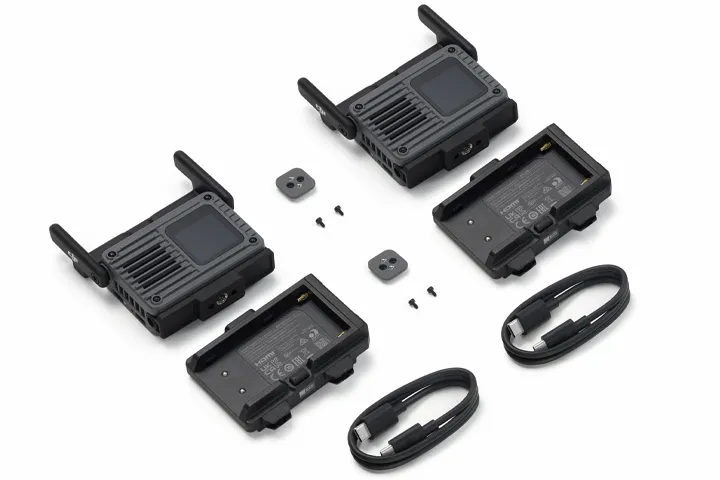
DJI SDR Transmission 2 Transceiver × 1
DJI SDR Transmission 2 Camera Cold Shoe Adapter × 1
DJI SDR Transmission 2 NP-F Battery Adapter × 1
Firmware Update Cable (USB-C to USB-C, 50 cm) × 1
WHY BUY FROM US?
By buying from Ferntech, you'll have the confidence that you are dealing directly with New Zealand's leading drone experts. Our staff are knowledgable drone pilots who offer expert advice, trusted support and superior specialist service. Only through us will you receive a full New Zealand warranty, phone and email support, and access to our certified Repairs Centre with DJI-qualified drone technicians. And we guarantee that we will have the best prices on the market — if not let us know and we will match any price (conditions apply).
Warranty Details
1 year warranty
General
What status indicators does DJI SDR Transmission 2 have?
There is one status indicator for system voltage. A fast-flashing red light indicates insufficient voltage, while a green light indicates normal voltage.
Does DJI SDR Transmission 2 support channel quality monitoring?
Yes. A signal quality bar graph is displayed on the Channel Dashboard of the transceiver and in the DJI Ronin app. Taller bars indicate better signal quality. A channel in green indicates good channel quality, while a channel in red indicates poor quality.
What should I pay attention to when using DJI SDR Transmission 2 in high-temperature environments?
Ensure the environment is well-ventilated, avoid blocking any air vents, and avoid exposure to direct sunlight.
Does DJI SDR Transmission 2 support monitoring using a smartphone or tablet?
Yes.
1. A smartphone or tablet can connect to the transceiver (RX) through a USB-C to USB-C or USB-C to Lightning cable*. In this case, the signal is transmitted via SDR for enhanced stability and reliability.
2. For details on smartphones and tablets compatible with the DJI Ronin app, refer to the Ronin App Compatibility List on the Downloads page.
* Not included; sold separately or provided by the user.
Does DJI SDR Transmission 2 support third-party antennas?
No. Additionally, the antennas on DJI SDR Transmission 2 are non-removable.
Can DJI SDR Transmission 2 be used simultaneously with other wireless devices, such as wireless microphones?
When the transceiver auto-hops to a 2.4GHz channel or a 2.4GHz channel is selected manually, there may be interference with other wireless devices, including wireless microphones. In this case, manually selecting a non-2.4GHz channel is recommended. When selecting a channel, you can check the centre frequency of the channel on the transceiver's main interface to confirm whether it is on the 2.4GHz frequency band.
What batteries does DJI SDR Transmission 2 support?
NP-F series batteries. Please note that due to differences in battery capacity and battery life, the actual runtime may vary.
Which Ronin ecosystem products are compatible with DJI SDR Transmission 2?
DJI SDR Transmission 2 supports DJI RS 5, RS 4 Pro, RS 4, RS 3 Pro, Ronin 2, and Master Wheels*.
When the transceiver is connected to an RS series stabiliser, it can be powered by the stabiliser's battery. The transceiver can also wirelessly control RS series stabilisers via the DJI Ronin app, supporting Force Mobile, virtual joystick, and gimbal recentering features. Please note: When connecting the DJI SDR Transmission 2 Transceiver to an RS series stabiliser, remote camera control requires an additional Multi-Camera Control Cable to connect the gimbal and camera**. Additionally, when the DJI SDR Transmission 2 Transceiver is connected to a stabiliser via the Quick-Release Plate, a native vertical shooting setup is not supported.
When connecting Master Wheels to Ronin 2, RS 3 Pro, RS 4, RS 4 Pro, or RS 5 via the transceiver, you can wirelessly control the stabiliser with Master Wheels, supporting gimbal control and gimbal recentering. If the stabiliser is connected to a camera, Master Wheels can also start or stop recording on the camera**.
* When using with Ronin 2 or Master Wheels, the DJI SDR Transmission 2 Gimbal Control Cable (USB-C to 4-pin) is required (sold separately). When using with RS 4 Pro, RS 4, or RS 3 Pro, the DJI SDR Transmission 2 Gimbal Control Cable (USB-C to CAN) is required (sold separately).
** You can use the Multi-Camera Control Cable included with the stabiliser, or purchase a compatible cable from the official DJI Store based on your camera model. For supported camera models and available control functions, refer to the "Camera & Lens Compatibility" page on the corresponding stabiliser's official website.
What cable is needed to connect DJI SDR Transmission 2 to DJI RS 5?
A USB-C to USB-C cable* is required.
* You can use the USB-C to USB-C cable included with the DJI RS 5 Combo or DJI SDR Transmission 2 package.
Does DJI SDR Transmission 2 support connection with DJI Focus Pro?
No.
What camera functions can DJI SDR Transmission 2 control?
You can adjust parameters such as aperture, shutter, and ISO through a shutter release cable (subject to the camera system, with adjustment response times ranging from approximately 0.5 to 1 second), as well as take photos or start/stop recording. Additionally, you can access a camera's Mirror Control mode through an HDMI cable.
Note that when the transceiver is connected to both Master Wheels and a camera, only starting/stopping recording is supported.
The above features are only supported by some camera models. For details, please refer to the Camera Compatibility List on the Downloads page.
When using with Ronin 2 or Master Wheels, the DJI SDR Transmission 2 Gimbal Control Cable (USB-C to 4-pin) is required (sold separately). When using with RS 4 Pro, RS 4, or RS 3 Pro, the DJI SDR Transmission 2 Gimbal Control Cable (USB-C to CAN) is required (sold separately).
What is the purpose of the DFS channels on DJI SDR Transmission 2, and how do I set them up?
DFS channels are utilised for their reduced interference and more stable signal connection. However, they can only be used after ensuring that there is no radar frequency band occupation in the environment.
To use the DFS frequency band, go to the channel selection list in the transceiver menu and select one of the DFS channels.
The DFS frequency band is prohibited in certain countries/regions, and the number of available DFS channels may also vary. Please refer to local laws and regulations.
Can I link DJI SDR Transmission 2 with DJI SDR Transmission or DJI Transmission?
No. Additionally, if DJI SDR Transmission 2 and DJI SDR Transmission or DJI Transmission are used at the same site, make sure their centre frequencies do not overlap.
Video Transmission Connection
What is the maximum number of cameras that DJI SDR Transmission 2 can support simultaneously?
Up to five cameras are recommended; the actual number may vary depending on the on-site wireless environment.
How many transceivers (RXs) can one DJI SDR Transmission 2 Transceiver (TX) connect to simultaneously?
Eight.
Are there any distance requirements between multiple transceivers?
There are no distance requirements between transceivers (TXs) of different groups or between transceivers (RXs) of different groups. However, it is recommended to keep a distance of at least 30 cm between a transceiver (TX) and a transceiver (RX) from different groups.
For example, if two transceiver groups are on set (TX-A with RX-A, and TX-B with RX-B), there are no distance requirements between TX-A and TX-B, or between RX-A and RX-B, but it is recommended to keep TX-A and RX-B at least 30 cm apart.
How do I obtain the channel frequency information for DJI SDR Transmission 2?
You can download the Channel and Frequency Table from the Downloads page on the official DJI website, or check the current channel frequency information on the transceiver's main interface.
You can use this information to properly allocate wireless channels on set.
How do I set the channel on DJI SDR Transmission 2?
1. On the Channel Settings screen of the transceiver, set Channel Mode to Manual, then tap Channel Selection to open the channel list and select a channel.
2. Alternatively, connect the transceiver (RX) to the DJI Ronin app and select a channel in the app.
Transceiver
How can I mute the transceiver's fan during recording?
Swipe down on the transceiver's main interface, tap General > Fan Mode, and select Auto or Mute.
Can the SDI, DP, and HDMI ports be used simultaneously?
Transceiver (TX):
No. Only one input is supported at a time. If video signals are connected to two ports at the same time, the first connected signal takes priority.
Transceiver (RX):
1. When using the transceiver alone, video can be output from either the DP or HDMI port, but only one at a time.
2. With the Expansion Plate installed, up to three video feeds can be output simultaneously: one from the transceiver (DP or HDMI, only one at a time) plus two from the Expansion Plate (SDI and HDMI simultaneously).
The SDI port is available on the DJI SDR Transmission 2 Expansion Plate, which is sold separately.
Can the transceiver (RX) output video from multiple ports simultaneously?
Yes:
1. The DP and HDMI ports on the transceiver cannot output simultaneously; only one can be used at a time.
2. The SDI and HDMI ports on the Expansion Plate can output video simultaneously with the transceiver's DP or HDMI port.
Does the transceiver support video loop-out when used as a transmitter?
1. The Expansion Plate supports loop-out. Swipe down on the transceiver's main interface, then tap Input/Output Direction > Expansion Plate Installed > Output.
2. The transceiver itself does not support loop-out.
The DJI SDR Transmission 2 Expansion Plate supports input/output of up to 1080p/60fps.
Do the SDI and HDMI ports support audio output?
Yes.
Why does the transceiver still display that there is no signal input even after connecting to an HDMI (or SDI) source?
1. Check whether the video source output format is supported by DJI SDR Transmission 2:
DCI 4K: 23.98/24/25/29.97/30/50/59.94/60fps
4K UHD: 23.98/24/25/29.97/30/50/59.94/60fps
1080p: 23.98/24/25/29.97/30/50/59.94/60fps
1080i (the transceiver supports input only; the Expansion Plate supports input/output): 50/59.94/60fps
720p: 50/59.94/60fps
Note that the DJI SDR Transmission 2 Expansion Plate does not support 4K input/output.
2. Check whether the cable is securely connected.
3. Try a different cable.
If a 4K signal is input to the HDMI port of the transceiver (TX), can the SDI port of the transceiver (RX) automatically downscale the output to 1080p?
Yes.
The SDI port is available on the DJI SDR Transmission 2 Expansion Plate, which is sold separately.
Can the transceiver charge a smartphone or tablet when connected via a cable?
It can charge smartphones. However, due to limited charging power, when connected to tablets or certain smartphones, it can only slow down the rate at which the device's battery drains rather than charging it effectively. The charging status may not be displayed on the device.
App
How do I enable Mirror Control mode for Sony cameras?
In the top-right corner of the DJI Ronin app interface, open the settings menu and select Camera Control Button to enable Mirror Control mode. You also need to go to the camera's settings menu and set HDMI Settings > HDMI Control to On.
The feature is only supported by some camera models. For details, refer to the Camera Compatibility List on the Downloads page.
Can I import LUTs?
Yes. The DJI Ronin app comes with a selection of common LUTs pre-installed, and you can also import custom LUTs. Please note that due to the video transmission bitrate, the LUT effect may differ slightly from that on the camera. This is normal.
Can I change the name and password of the wireless video transmission signal?
1. The name of the wireless signal is the Device Number of the transceiver (TX), which is displayed on the main interface. Tap the Device Number to enter Device Settings and change it to any letter from A to P.
2. The transceiver (TX) supports setting a pairing passcode. Tap the Device Number to enter Device Settings, where you can toggle on Device Encryption and set a 4-digit wireless pairing passcode.
Power Supply
What should I pay attention to when using the DJI SDR Transmission 2 Transceiver with third-party batteries?
When using a third-party battery to power both the transceiver and other devices (such as a camera or monitor) at the same time, a low battery level may cause an unstable power supply, and the transceiver may not function properly. Replace the battery promptly.
Can USB-C and a battery power the transceiver at the same time?
Yes.
Tips
How do I troubleshoot if the device does not power on properly?
When the transceiver is connected to a stabiliser:
1. Check whether the connection is correct. You can refer to the diagrams in the Quick Start Guide.
2. Check whether the connection cable is the Multi-Camera Control Cable provided with the stabiliser, as third-party USB-C cables may not support power supply.
When using NP-F batteries for power supply:
1. Check whether the battery voltage is sufficient, as low voltage may prevent the device from powering on properly.
When powered via the USB-C port:
1. Check whether you are using a power adapter that supports the PD protocol*. Non-PD power adapters might not supply power correctly. For details, please refer to the PD Adapter Compatibility List on the Downloads page.
* A PD power adapter with an output of 65 W or above is required.
How do I troubleshoot if the monitoring screen is not displaying correctly?
1. Check whether the transceiver (TX) and transceiver (RX) have successfully established a wireless connection. Successful connection information should be displayed on the main interface of the transceiver (RX).
2. On the transceiver (RX), check whether the video stream is being transmitted properly. If it is, video resolution, frame rate, and bitrate should be displayed. If these details are not showing properly, check the video status icon on the transceiver (TX)'s main interface to ensure it is normal.
3. Check whether the video source output format is supported by DJI SDR Transmission 2:
DCI 4K: 23.98/24/25/29.97/30/50/59.94/60fps
4K UHD: 23.98/24/25/29.97/30/50/59.94/60fps
1080p: 23.98/24/25/29.97/30/50/59.94/60fps
1080i (the transceiver supports input only; the Expansion Plate supports input/output): 50/59.94/60fps
720p: 50/59.94/60fps
Note that the DJI SDR Transmission 2 Expansion Plate does not support 4K input/output.
4. Check whether the monitor supports the corresponding video source format.
5. Check whether the cable is securely connected.
6. Try a different cable.
How do I troubleshoot grid-like patterns that keep appearing on the monitoring screen?
Check for wireless channel interference:
1. On the Channel Dashboard, check whether multiple device sets are sharing the same channel. When multiple devices are operating on the same set, make sure to use different channels.
2. Access the Video Transmission Diagnostics screen on the transceiver (RX) and adjust the channel based on the diagnostic results.
Check whether there are obstructions:
Elevate the transceiver (RX) to a higher position or minimise obstructions as much as possible.
Check the physical distance between devices:
There are no distance requirements between transceivers (TXs) of different groups or between transceivers (RXs) of different groups. However, it is recommended to keep a distance of at least 30 cm between a transceiver (TX) and a transceiver (RX) from different groups.
For example, if two transceiver groups are on set (TX-A with RX-A, and TX-B with RX-B), there are no distance requirements between TX-A and TX-B, or between RX-A and RX-B, but it is recommended to keep TX-A and RX-B at least 30 cm apart.
Check for cable-related issues:
If the grid-like patterns still occur when the transceiver (RX) is moved to about 1 metre from the transceiver (TX) and the bitrate on the transceiver (RX)'s main interface continues to fluctuate significantly, it could be a cable-related issue. Consider switching to a different cable.
How should the antennas of DJI SDR Transmission 2 be positioned for optimal signal performance?
1. Position the antennas upright, pointing toward the sky.
2. Keep the device away from metal structures.
3. Keep the area around the antennas clear of obstructions.
Which Osmo series products does DJI SDR Transmission 2 support?
The transceiver (TX) supports Osmo Action 6 and Osmo Pocket series (Osmo Pocket 4 and later) via DP mode.
1. Connection Settings: Connect the Osmo device to the DP port on the transceiver (TX) using a USB-C cable (the DJI SDR Transmission 2 L-Shaped USB-C Video Cable* is recommended), and set the transceiver (TX) to "DP IN".
2. Supported Functions: Video transmission.
* The DJI SDR Transmission 2 L-Shaped USB-C Video Cable (DP, 50 cm) is sold separately.
What cables are available for DJI SDR Transmission 2?
Cables available for DJI SDR Transmission 2 include the Firmware Update Cable (USB-C to USB-C, 50 cm), the DJI SDR Transmission 2 L-Shaped USB-C Video Cable (DP, 50 cm), the DJI SDR Transmission 2 Gimbal Control Cable (USB-C to CAN), and the DJI SDR Transmission 2 Gimbal Control Cable (USB-C to 4-pin)*.
For DP video connections, it is recommended to use the DJI SDR Transmission 2 L-Shaped USB-C Video Cable (DP, 50 cm).
For details on how to use the gimbal control cables, refer to the User Manual on the Downloads page.
* The Firmware Update Cable (USB-C to USB-C, 50 cm) is included with DJI SDR Transmission 2. Other cables are sold separately.
When should I use the low-latency output feature on DJI SDR Transmission 2?
1. When a monitor supports 4K/60fps 10-bit input but the video source frame rate is below 60fps, enable this feature to ensure the transceiver (RX) outputs at a stable 60fps for smoother monitoring.
2. For low-frame-rate video sources, this feature reduces latency to provide a more responsive live view, helping focus pullers and other crew members respond and adjust more precisely.
There's currently no reviews for this product, be the first to write one.